
Trade Manager
Execute Buy and Sell orders in one click, calculate lot sizes automatically, and protect your account with a Daily Loss Limit Guard (%).
Ergotick MT5 Trade Manager is an all-in-one Forex Trade Management Software for MetaTrader 5 that automates lot size calculation, visual Risk-to-Reward planning, and active position management directly on the chart. It combines 1-click order execution, multiple partial take profits, live trading stats, and an on-demand economic calendar.
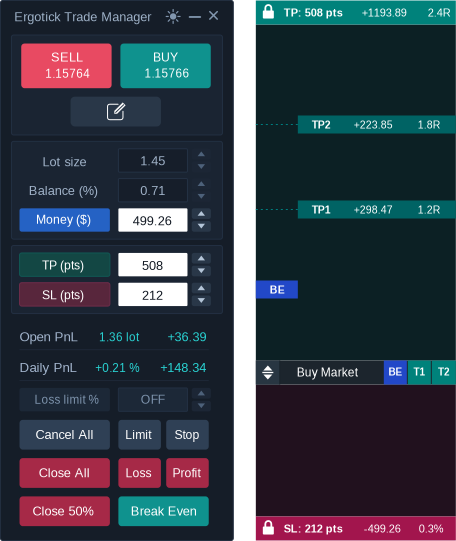
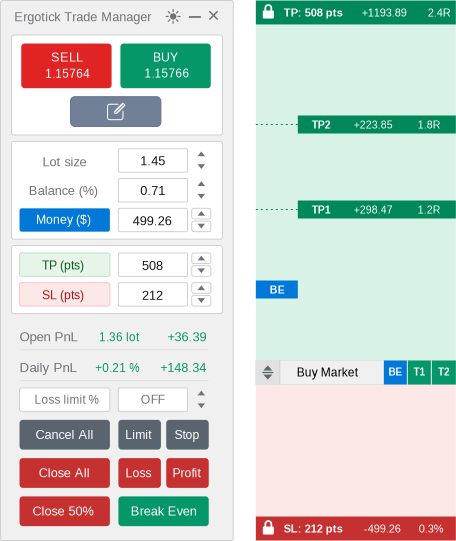
One MQL5 license gives you four built-in tools working together inside a single lightweight panel.
Execute Buy and Sell orders in one click, calculate lot sizes automatically, and protect your account with a Daily Loss Limit Guard (%).

Plan your Entry, Stop Loss, Break-Even (BE), and partial take profits (T1, T2) visually on the chart with live R-multiples and dollar risk.

Press S anytime to check 14+ live performance metrics including Profit Factor, Sharpe Ratio, Expectancy, and Max Drawdown, without sending data anywhere.

Press N anytime to bring up the native MetaTrader 5 economic calendar directly on your chart and hide it just as fast.
The visual Risk-to-Reward tool calculates your exact MT5 position size in real time from your risk setting (% of balance or a fixed dollar amount), your Stop Loss distance in points, and your broker's live symbol contract specs.
Drag the Entry, Stop Loss, and Take Profit levels directly on the chart. You see your risk in cash, distance in points, and R-multiple before placing the order, with no spreadsheets or manual math.
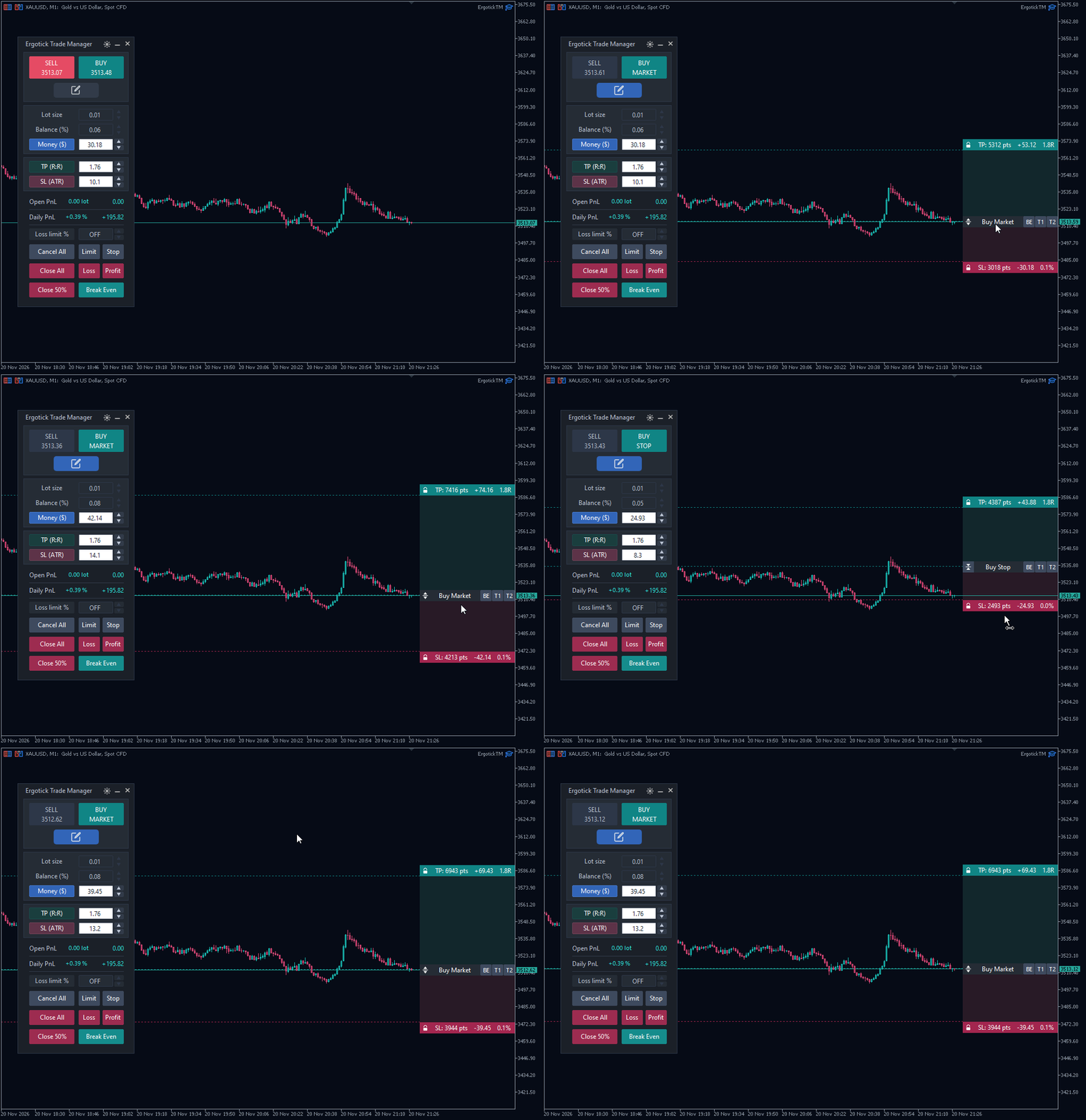
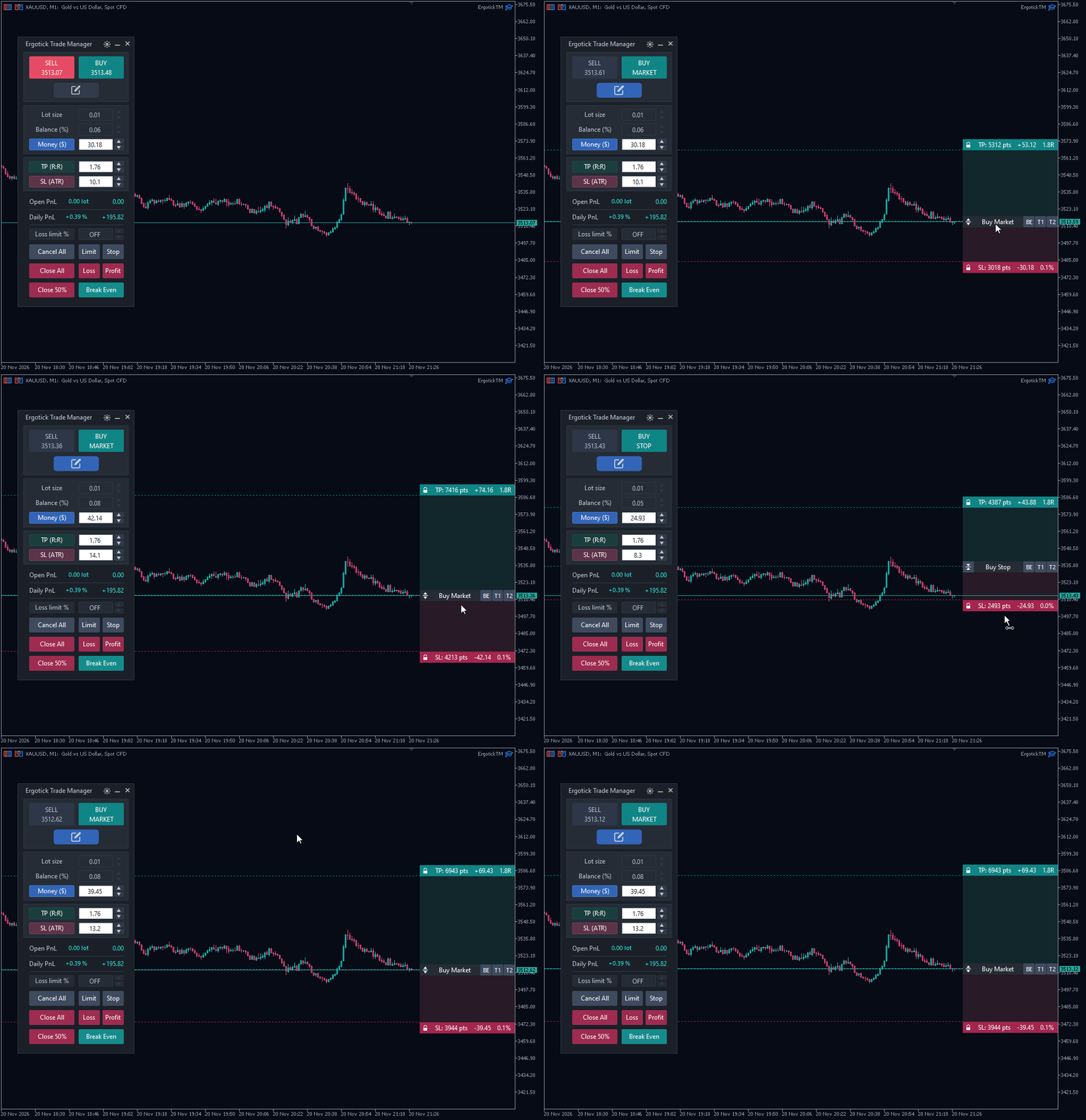
Before opening a trade, you can set Break-Even (BE) and two partial take-profit targets (T1 and T2) directly inside the visual Risk-to-Reward tool. Once price reaches those levels, the panel closes partial volume and moves your Stop Loss automatically.
If you trade multiple charts at once, each symbol and position runs independently with its own BE, T1, and T2 rules.
Alongside order execution, the panel includes a Daily Loss Limit Guard in %, a native economic calendar, and a private statistics dashboard. Both overlays stay hidden until you press a shortcut key, keeping your chart clean.

Key technical specs and supported features.
Every option includes the complete Ergotick MT5 Trade Manager. Choose how long you want to trade with it.
Low-cost start to test on live charts
One-time payment, forever yours
Both options are sold exclusively via the official MQL5 Market. Safe checkout and instant delivery to your MetaTrader 5 terminal.
It works with any MetaTrader 5 broker and supports Forex pairs, Stocks, Gold (XAUUSD), Indices, Crypto, and Commodities. It reads contract sizes and tick values straight from your MT5 terminal to keep position sizing accurate on every symbol.
Yes. It runs 100% locally inside MetaTrader 5 with no external servers, DLLs, or trade-copying protocols. Always double-check your specific prop firm's rules on trade management utilities before trading a funded account or challenge.
No. Everything is written in pure MQL5 with zero external DLL imports and zero outbound data. All lot calculations, trading stats, and order actions stay inside your MetaTrader 5 terminal.
You set a daily loss limit in % right on the panel. Once your daily loss reaches that limit, the guard closes your open positions and locks the panel with a LOCKED status to stop revenge trading and protect your account.
Pressing S opens a local dashboard with over 14 metrics: Net Profit ($ and %), Win Rate, Profit Factor, Max Drawdown, Monday to Sunday daily breakdown, Avg Win/Loss, Risk:Reward, Expectancy per Trade, Consecutive Wins/Losses, Avg Trade Duration, Avg Trades/Day, Sharpe Ratio, Balance/Equity, and Buy/Sell Ratio. You can filter by D, W, M, or Y and switch between the current symbol or ALL trades.
Yes. You can run open positions on different currency pairs, gold, stocks, or indices at the same time. Each trade is tracked independently with its own BE, T1, and T2 levels.
Yes. You can prepare and manage both market and pending orders (Limit and Stop) from the chart, close 50% of a position, close only losing or winning trades in one click, or set automatic partial closes at T1 and T2.
Yes. Automated features like Break-Even (BE), T1/T2 partial closes, and the Daily Loss Limit Guard require desktop MetaTrader 5 to stay running and connected on your PC or a VPS. Standard broker Stop Loss and Take Profit levels stay active on the broker side even if you close the terminal.
Press N to open the native MT5 economic calendar on your chart, and press S to view your live trading statistics. Pressing the same key again hides the panel immediately.
Trading robots open trades on their own using fixed signals. Ergotick is a manual and semi-automated tool: you decide when and where to enter, and the software handles lot calculation, visual Risk-to-Reward planning, Break-Even, partial take profits, and daily loss protection.